 Github Stars:
 Last Commit:
  Created:


Overview:
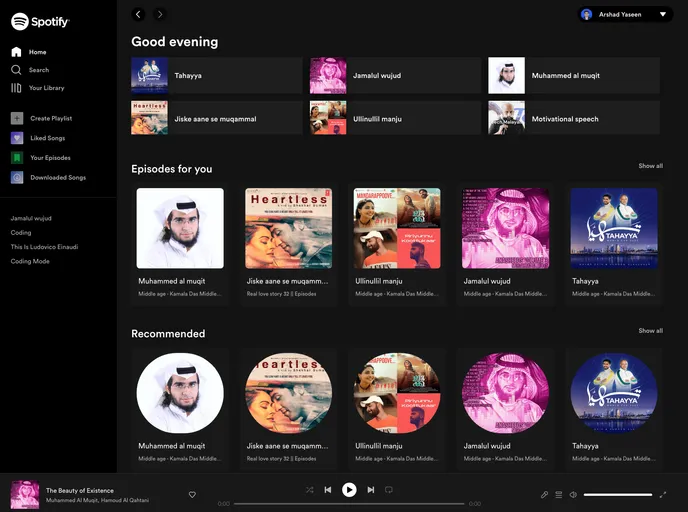
This product analysis will focus on the Spotify Design signup, login, and password reset pages. These pages are part of the Spotify Design website and are designed to allow users to easily create an account, log in, and reset their password.
Features:
- User-friendly Interface: The signup, login, and password reset pages feature a clean and intuitive interface, making it easy for users to navigate and complete desired actions.
- Seamless Account Creation: The signup page enables new users to create an account effortlessly by providing all necessary fields and guiding them through the process.
- Secure Authentication: The login page ensures secure authentication by prompting users to enter their credentials and implementing necessary security measures, such as password hashing and encryption.
- Efficient Password Reset: The password reset page allows users who have forgotten their password to reset it conveniently by providing a means to verify their identity and set a new password.
Installation:
To install and set up the Spotify Design signup, login, and password reset pages, follow these steps:
Open your preferred web browser and navigate to the signup page at https://spotify-design.vercel.app/signup.
<a href="https://spotify-design.vercel.app/signup" target="_blank">https://spotify-design.vercel.app/signup</a>Complete the required fields, such as username, email, and password, and click on the “Sign Up” button to create an account.
To log in, visit the login page at https://spotify-design.vercel.app/login.
<a href="https://spotify-design.vercel.app/login" target="_blank">https://spotify-design.vercel.app/login</a>Enter your username and password in the provided fields and click on the “Log In” button to access your account.
If you forget your password, go to the password reset page at https://spotify-design.vercel.app/password-reset.
<a href="https://spotify-design.vercel.app/password-reset" target="_blank">https://spotify-design.vercel.app/password-reset</a>Follow the instructions on the page to verify your identity and set a new password for your account.
Summary:
The Spotify Design signup, login, and password reset pages offer a user-friendly and secure experience for creating and accessing accounts. With their intuitive interfaces and efficient processes, these pages contribute to a seamless user journey on the Spotify Design website. Whether it’s creating a new account, logging in, or resetting a forgotten password, users can rely on the functionality and design of these pages to achieve their desired actions effectively.